By Michael, former real estate photographer in St. Augustine, FL.
Brighten Dark Interior Photos in Real Estate Listings
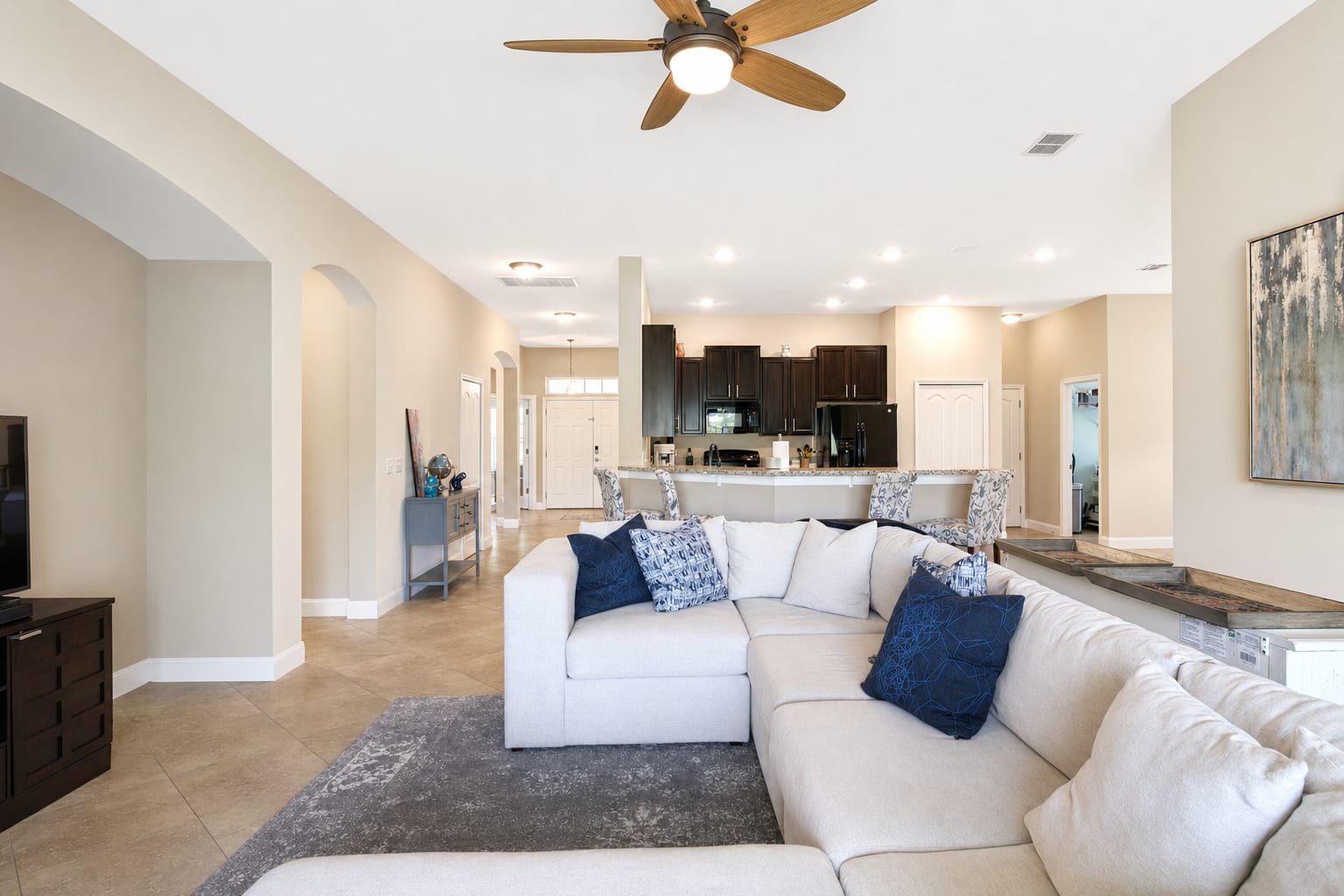
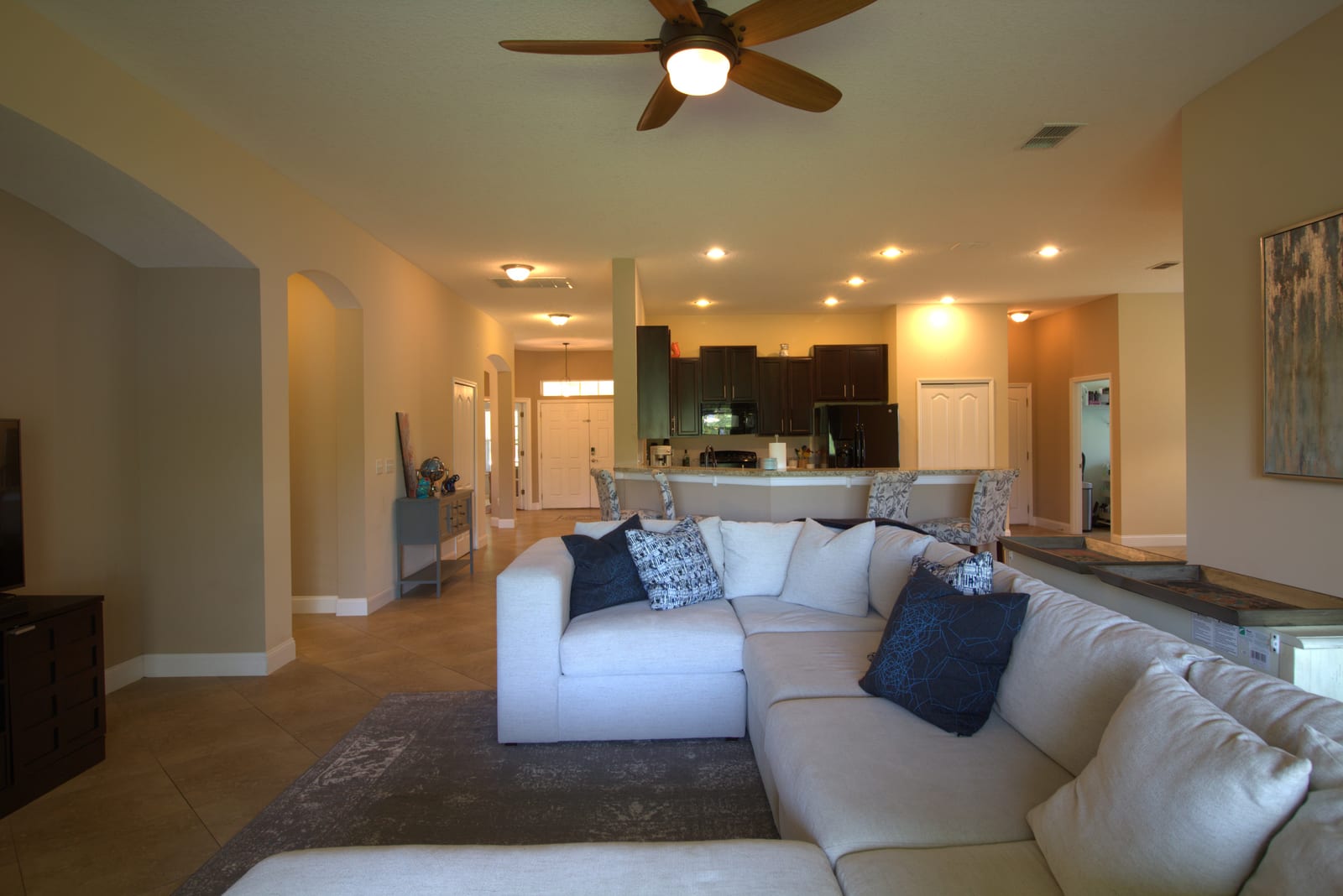
You walk through a listing on a sunny afternoon. The kitchen and the front rooms photograph fine. The back bedrooms, the den, the dining area: the phone fights you on every shot. The walls go beige-yellow, the windows wash out, the back of the room goes pitch dark. Dark interior photos are the most common phone-shot listing problem after blown-out windows. The room is not the problem; the camera in your phone is. Photo enhancement is the cheap fix. At BiziEdit, brightening the full room is part of every photo enhancement, alongside the other corrections we make.
Why phones produce dark interior photos
A phone camera is set up for outdoor light. When you point it at a room with smaller windows, mixed indoor lighting, and an off-white wall, the sensor cannot expose the whole frame correctly in a single shot. The phone tries to balance: the bright window stays bright, the room goes muddy and the corners go black. Tap to lock on the dark wall and the window blows out. There is no in-camera setting that fixes both at once on a phone. The room is fine; the camera is doing what cameras do.
What enhancement actually changes
Photo enhancement does what a real estate photographer would do in editing: lift the room exposure, neutralize the color cast (kill the yellow from the lamps and the blue from the windows), even out the shadows in the corners, and bring the windows back into a sensible exposure. The architecture, the wall color, the furniture, and the angle stay the same. The room you uploaded is the room you get back, just photographed properly. The hero pair on this page shows it on a great room shot: same furniture, same layout, same time of day, but the right one looks like a listing photo and the left one does not.
Two minutes of help when you shoot
Two phone tricks help the enhancement step have more to work with. Turn on every light in the room before you shoot, including bedside lamps and undercabinet kitchen lights. Open the blinds halfway, not fully, so the windows do not fully blow out. Both add data the enhancement step can use. They do not fix the problem on their own; they just make the fix cleaner.
Pricing
Photo enhancement is $0.79 per image, no subscription. The first 10 enhancements are free with the trial, so a typical listing's worth of dim interiors fits inside the trial on the first run. See per-image pricing for the full breakdown, start with 10 free enhancements, or browse virtual staging if you also need empty rooms staged.
More from BiziEdit
How to Upscale Real Estate Photos to 24 MP for Print
Upscale real estate photos to 24 MP, about 6000 px, sharp enough for print. BiziEdit enhances and upscales listing photos at $0.99 per image, no subscription.
How to Fix Mixed Lighting in Real Estate Listing Photos
Fix mixed lighting in real estate listing photos with color optimization. BiziEdit unifies split white balance from tungsten and daylight for $0.79 per image.
Fix Hazy Aerial Photos on Real Estate Drone Listings
Fix hazy aerial photos on real estate drone listings. Clear the haze, drop the lens distortion, recover color. $0.79 per image. First ten enhancements free.
Twilight Conversion vs Sky Replacement for Listings
Twilight conversion vs sky replacement: one swaps daytime for dusk, the other only swaps clouds. Different services, different prices on a BiziEdit order.
Fix Flat Overcast Skies in Real Estate Listing Photos
Fix flat overcast skies in exterior listing photos at $0.79 per image. Sky enhancement is part of every BiziEdit photo enhancement. First ten free.
Fix Yellow Color Cast in Real Estate Listing Photos
Fix yellow color cast in listing photos at $0.79 per image. Color optimization is part of every BiziEdit photo enhancement. First ten enhancements free.
Pricing
$0.79 per image. First 10 photos free. No subscription, no credit card to start.
Try 10 photos freeFAQ
- Can enhancement fix a photo where the windows are completely white?
- Yes, partially. If a window is fully blown out and the outside view is not present in the photo at all, the enhancement step can recover some interior contrast but will not invent a view. For real outside-view recovery, request window view restoration on the same photo. The two enhancements are separate.
- Will the photo look fake?
- No. Enhancement uses the photo you uploaded as the source, and only changes exposure, color, and shadow detail. The walls, furniture, fixtures, and angle of the photo all stay the same. The result is a properly photographed real estate listing photo, not a graphic or rendering.
- What if the photo also has blown-out windows?
- Request window view restoration on that photo as a separate enhancement on the same upload. Photo enhancement handles the rest of the room (exposure, color, shadows); window view restoration handles the view through the window using a second view-only photo you take from the same spot.
- Should I shoot RAW for this?
- No. RAW gives you more data, but BiziEdit handles JPEG and HEIC out of a phone the same way it handles RAW. Phones do not export RAW reliably anyway, and most agents are not running an editing workflow that uses it. Shoot the way you normally do; the enhancement step does the rest.